You can hide or replace the mark, but a clean source is better
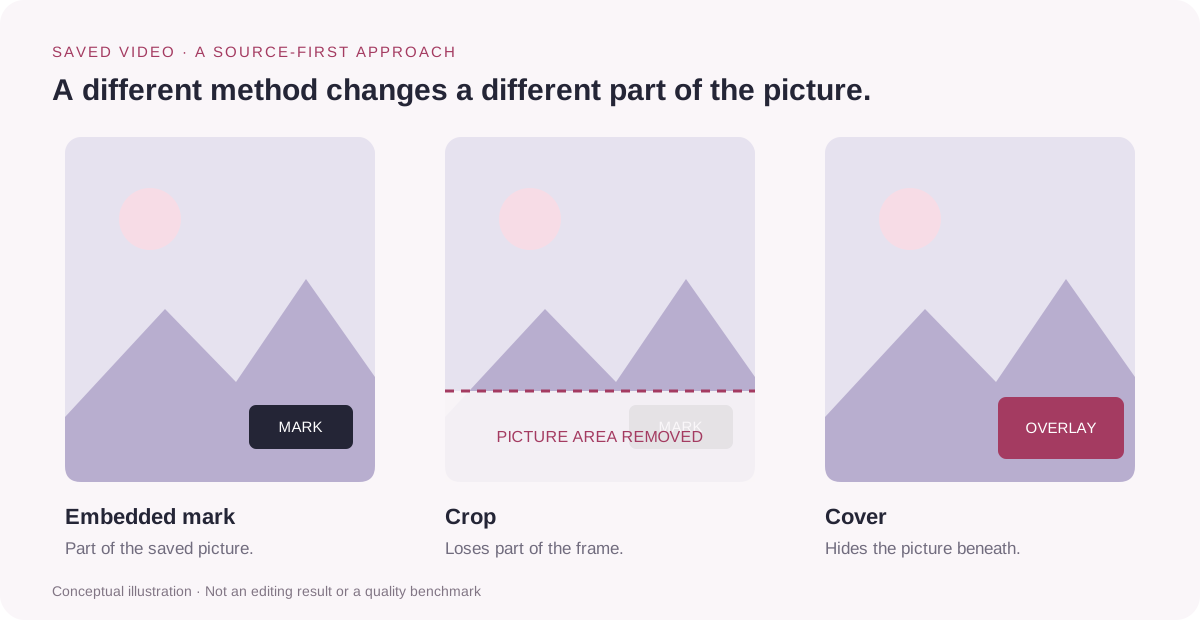
If the TikTok watermark is embedded in a saved video, it is part of the picture. There is no separate logo layer to switch off. Cropping removes part of the frame; blur and overlays hide it; AI cleanup estimates replacement pixels.
For the best chance of keeping the whole picture, first look for your original camera or editing export. If the public post link still works, another available media version may help. That is obtaining a different file, rather than repairing the one already on your phone.
Choose a method based on what you still have
| What you have | Best starting point | Tradeoff |
|---|---|---|
| The original footage or editing project | Export a new copy from that source. | TikTok-only effects or edits may need recreating. |
| A working public TikTok link | Check the available media version. | A watermark-free or higher-quality file is not guaranteed. |
| Only a saved file, with empty space around the mark | Try a crop on a copy. | You lose picture area and may change the aspect ratio. |
| Only a saved file, with important detail behind the mark | Compare a small blur, overlay or AI cleanup test. | The original hidden detail cannot be reliably recovered. |
Make a duplicate before editing. Keep the saved original so you can compare results and start again if the export is worse. For someone else’s work, ask the creator for an authorized clean copy when needed; removing a logo does not give you permission to republish the video.
First, look for your original video export
If it is your video, check Photos or your camera folder, cloud backups and the editor where you made it. The original export may have a different filename or creation date from the TikTok download.
- Find the footage or editing project used before uploading.
- Open it and compare its duration, captions and soundtrack with the saved TikTok version.
- If needed, export a new copy from the editor, checking its own branding and export settings.
- Play the file from start to finish before replacing your working copy.
The camera original might not contain text, cuts or effects you added inside TikTok. A clean video is only a useful replacement if it includes the parts you actually need. Keep both versions while you decide whether to recreate those edits.
For another creator’s work, a requested source file can be a better answer than trying to reconstruct their picture. Tell them whether you need the full edit, a short excerpt or a different aspect ratio so they can supply the right version.
If you still have the public TikTok link
A link-based downloader requests media associated with the post. It does not read your saved MP4 and erase its watermark. This distinction matters when comparing a “watermark remover” that accepts uploads with a downloader that only accepts a URL.
- Find the original post from the shared link, browser history or the creator’s profile.
- Check that it is the right work and remains publicly accessible.
- Paste its link into the TikTok video viewer and open the available work.
- Use an available download control, then inspect the actual saved file for watermarks, picture quality and audio.
ttokviewer works with public links and available media. It is not a local-file watermark editor, and does not promise a clean version of every post. If the source contains a logo baked into the picture, downloading it again may leave that logo unchanged.
If you only remember the author, the TikTok account viewer can help you find available public works. If you are trying to locate a clip you watched in your own TikTok account, follow the watch history guide first. A public viewer cannot recover deleted posts or read your private viewing history.
For device-specific saving and download-folder instructions, use the iPhone, PC and Mac download tutorial. This article focuses on choosing the source and handling an existing file.
How to crop a watermark out of a saved video
Cropping can work when the watermark stays near an edge and you can sacrifice that part of the frame. Watch the full clip first: a TikTok watermark can change position, so a crop that looks clean in the opening frame may leave another mark later.
On iPhone or Android
- Open a duplicate of the saved clip in Photos or your device’s gallery editor.
- Choose Edit and look for the crop tool. Controls vary between gallery apps.
- Move the frame boundaries inward to exclude each watermark position that appears during playback.
- Preview the beginning, middle and end. Check faces, subtitles and any important edge details.
- Save a copy where the editor offers that option, or export from your duplicate.
On PC or Mac, the same principle applies in a video editor: import a copy, use its crop or framing controls, preview the timeline and export a new file. Trimming the start or end is a different operation; it will not remove a watermark that remains over the main video.
When cropping is the wrong choice
A watermark over a face, product or subtitle is not a good candidate. Cropping around it may remove the very information the video is meant to show. Forcing the cropped clip back into a full-height frame can magnify the remaining pixels and make it look softer.
You may also need to choose between a smaller picture with borders and a tighter crop that keeps the target aspect ratio. Check the intended layout before exporting, rather than stretching the picture to fill the frame.
Blur, cover or use AI cleanup: what changes?
Blur or cover the watermark
Use a localized blur or an overlay when preserving the outer frame matters more than retaining the small marked area. An overlay might be a solid shape or a graphic that fits your own edit. It hides the mark and the picture beneath it; it does not restore that picture.
If the mark moves, the mask or overlay must follow it. Check the tool’s tracking controls or adjust its position over time. A stationary patch can look fine in a screenshot and fail during playback.
Try AI removal on a short test
AI tools estimate what should appear in the selected region using nearby picture information and, depending on the tool, surrounding frames. The result may be plausible without being accurate. Simple backgrounds are usually a more forgiving test than faces, readable text or fast motion.
- Keep an untouched copy and choose a short representative segment.
- In an editor with an object-removal feature, select the watermark region.
- Include its changing positions across the segment, using the tool’s available selection or tracking controls.
- Preview the processed clip at normal speed, then inspect the affected area frame by frame.
- Continue only if the result is acceptable; compare the final export, not just the editor preview.
CapCut’s published desktop guide describes AI removal alongside crop, blur and overlay methods. Exact availability, menu names and pricing can depend on version and region. We have not benchmarked these editors and do not assume that a “free” preview includes a free full-resolution export.
Before uploading a file to an online editor, check its upload limits, retention policy and export terms. If the footage contains private material, a local editor may better fit your workflow.
Check quality, motion and audio before keeping the result
- Full duration: watch for the watermark reappearing in a different corner or over an end card.
- Picture detail: inspect faces, text, edges and textures near the edited area.
- Motion: look for flicker, smeared patches or a mask that stops following the mark.
- Framing: make sure the crop has not cut off captions or changed the composition too much.
- Audio: check lip sync and sound through the whole exported clip.
- Export: verify dimensions, frame rate, duration and whether the editor added its own branding.
Exporting at 4K does not recreate detail missing from a smaller source. Repeated exports can add compression loss. Keep the best available source, finish your edits in one project and avoid passing the video through several tools unnecessarily.
Screen recording is not a repair for an existing watermark. It captures the visible picture, including any mark already present, and can introduce interface elements, audio problems or missed frames. It should not be the first recommendation when an original export is available.
Keep a clean master for your next video
For your own future work, keep a master export from your editor before uploading it to a platform. Store the project, media and final video together. That gives you a source for later edits without having to work backward from a compressed download.
If you add platform-specific captions, effects or audio, keep track of those differences. A clean master will not automatically include them, and permission to use a soundtrack on one platform may not cover another.
Check the source before editing the copy.
Open the available work and inspect its download options. ttokviewer handles public links; local-file cleanup needs a separate editor.
Open a TikTok linkFrequently asked questions
Can I remove a TikTok watermark from a video already in Photos?
You can edit a copy using crop, localized blur, an overlay or a suitable cleanup tool. These methods change the picture. Check for an original export first, especially if the mark covers something important.
Can I remove the watermark without cropping?
You can cover or blur the marked area, or test AI cleanup. Those preserve the outer frame but replace or obscure content inside it. None guarantees accurate recovery of the hidden background.
Why does the watermark come back later in the video?
The mark can change position. A crop, mask or AI selection that handles only the first location may miss later ones. Review the whole timeline, including the end.
Does ttokviewer remove watermarks from uploaded files?
No. ttokviewer’s download workflow starts with a public TikTok link or creator profile. It does not upload and repair a saved MP4. The available media version determines what appears in the downloaded file.
Is there a free method?
Your existing gallery editor may offer cropping without another purchase. AI features and export limits vary by service. Check the final export requirements before spending time processing the full clip.
Can I repost the video after removing the watermark?
Removing a mark does not change ownership or grant reuse rights. Use your own material or obtain the permissions needed for the footage and soundtrack. A creator credit alone is not a substitute for permission.
Sources & editorial notes
Written from the accessible guides below and ttokviewer’s public-link download workflow. CapCut’s page is vendor documentation, not an independent quality test. The 2022 creator guide is used for source-file and workflow context; its old saving tricks are not presented as current instructions. The illustration is a schematic, not a before-and-after editing test. No editor comparison was benchmarked for this article.
- CapCut: Remove TikTok Watermark for Free — Six Methods — published crop, blur, overlay and AI-removal workflows.
- VidProMom: Remove TikTok Watermark — Five Easy Ways — original-export approach, link-based downloads and audio-sync considerations.