How to go LIVE on TikTok from a PC
Open TikTok’s official LIVE Studio download page, check the software offered for your computer and sign in with the account you want to use. If that account has desktop access, follow the setup offered in LIVE Studio, choose your picture and audio sources, and check the preview before starting the broadcast.
This guide focuses on a Windows PC workflow, with Windows 11 permission checks. Button labels, available capture sources and access conditions can differ by version and account. The steps below are a preparation and troubleshooting guide; we did not run an account-specific LIVE Studio session or broadcast for this article.
Check desktop access before building your setup
Start at the official TikTok LIVE Studio download page. Check the operating-system and hardware information it presents to you before installing. This review could not retrieve the full current compatibility details, so it does not promise support for every Windows laptop or a particular Mac configuration.
Sign in with the account that will host the stream and read any access or application message. Save the exact wording if something is unavailable. An installed encoder, a working webcam and a mobile LIVE button each answer a different setup question; check the desktop route itself.
The separate TikTok LIVE requirements guide covers follower conditions, age and missing mobile access. This article does not assign a universal follower number to LIVE Studio or assume that meeting a mobile requirement grants a stream key.
| Route | What to establish first | Next step |
|---|---|---|
| TikTok LIVE Studio | The official installer suits your computer and the signed-in account can use it. | Follow the setup available in that version. |
| An external encoder | TikTok or an approved connection explicitly offers a publishing destination to your account. | Follow that destination’s current connection instructions. |
| A virtual camera | The receiving application accepts the video device and already has its own publishing access. | Check video input and audio routing separately. |
If access is denied, record the account, date, software version and exact message before asking TikTok for help. Adjusting a microphone level cannot resolve an account-access decision.
1. Set up TikTok LIVE Studio for a simple first scene
Use the initial setup offered by your installed version. TikTok’s older LIVE Studio Guideline has a search-indexed excerpt describing microphone selection and an audio-level test. Its full body was unavailable in this review, so the checklist below uses tasks rather than claiming a verified sequence of current buttons.
- Confirm the hosting account and finish any access checks shown by TikTok.
- Choose the camera you intend to show, if the format needs one. Inspect the preview before adding decorative elements.
- Select the microphone by its device name. Speak normally and check that the intended input responds.
- Choose an orientation and a simple layout for the subject. Add the application, screen or camera source your version supports.
- Use the software’s available quality recommendation or checks as a starting point, then review the result with your actual content.
For a talking session, one camera and one microphone may be enough. For a software demonstration, start with the application you need to explain. Each extra source gives you another setting to check and another possible cause when the output goes wrong.
Keep a short setup note: app version, scene name, camera, microphone, playback device and quality preset. If the next session behaves differently, those details give you something specific to compare.
2. Build a picture that works on a phone
Choose the framing around what viewers need to see. A portrait layout may suit a face or a close-up demonstration; a wide software interface needs enough space for its text. Inspect the final composition rather than assuming that a large desktop preview will remain readable when reduced.
Use a window or game source when the application and your software support it. If you capture a whole display, check everything that might appear on that display during the session. Keep the capture focused on the material you intend to explain.
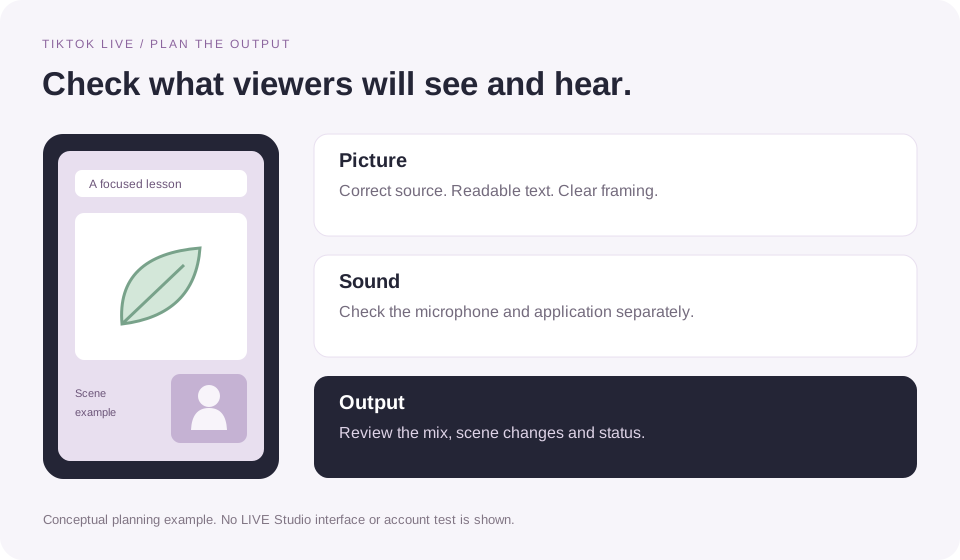
A sample scene for a short drawing lesson
Suppose you plan to explain how you shade a leaf in a drawing app. Make the canvas the main picture, zoom in on the leaf and place a small camera view where it does not cover the brush controls. Keep the lesson title readable without obscuring the drawing.
Before broadcasting, move the brush, open a menu and switch to the next part of the lesson while watching the output preview. Check that the selected window still appears and that a popup does not cover the demonstration. This is a hypothetical planning example, not a tested LIVE Studio layout or a creator case study.
If you are using OBS
The OBS Quick Start Guide distinguishes desktop, window, game and video-device sources. Its Game Capture documentation says that Game Capture targets games and that ordinary non-game windows need Window Capture. Those are OBS instructions; LIVE Studio can have different source names and behavior.
3. Check your microphone and desktop sound separately
Decide which sounds belong in the broadcast. A spoken lesson may need only your microphone. Gameplay or a demonstration may also need application sound. Write those intended inputs down, then check them one at a time before listening to the combination.
| Check | Action | What to listen for |
|---|---|---|
| Microphone | Speak into the selected device while other intended audio is quiet. | A clear voice without missing words or distortion. |
| Application sound | Play a short sound from the application you intend to show. | The correct application at a level that leaves speech understandable. |
| Combined output | Speak while the application sound plays. Listen to a local recording if your setup provides one. | A balanced mix and one clear copy of each sound. |
A moving meter establishes that a signal is reaching that point in the software. Listening to the output is still useful for checking the selected source and the balance. The OBS guide documents its mixer meters, manual audio-device selection and test recording; use the equivalent checks your LIVE Studio version offers.
Check Windows 11 device permissions when needed
Microsoft’s microphone permission instructions use Settings → Privacy & security → Microphone. Check microphone access and the desktop-app access setting when troubleshooting a trusted desktop application. Its camera instructions use Settings → Privacy & security → Camera and describe the corresponding camera and desktop-app settings.
Microsoft notes that desktop applications may not have individual entries in the camera permission list. If a permission is controlled by an administrator, ask the device administrator to check it. Once the device works, return to the streaming app and select it again if necessary.
4. Run a preflight before starting the broadcast
Inspect the complete output, including scene changes. The list below is an editorial checklist you can adapt to your format.
- Confirm that the hosting account, title and any category shown by TikTok match the session you intend to run.
- Check the camera, selected application and each scene you expect to use. Read the smallest text at a reduced preview size.
- Listen to your voice and intended application audio together. Close any unnecessary copy of the stream playing through speakers.
- Review the application’s quality and connection checks. Leave room for the work your game or demonstration will add.
- Know how to mute, change scenes and end the broadcast in your version. Decide how you will monitor questions during the session.
If a local recording option is available, use it to inspect picture and sound before publishing. OBS explicitly recommends testing settings before a first stream. A local recording checks local output; it cannot establish TikTok publishing permission or the quality of a live network connection.
When you are ready to broadcast, follow TikTok’s final start controls and confirmation prompts. Afterwards, end the session in the broadcasting application and verify its status. A blank scene is not an end-of-broadcast confirmation.
Troubleshoot the symptom you can observe
Record what fails before changing settings. “The preview is black” gives you a different starting point from “the preview looks fine, but the audience sees a frozen image.” Change one thing, repeat the same check and keep the result.
| Symptom | First checks | Useful next evidence |
|---|---|---|
| Desktop access is missing | Confirm the signed-in account and read the access message. | The exact message, app version and date for TikTok support. |
| Camera is blank | Check the selected device and Windows camera permissions. Close an unnecessary app using the device and retest. | Whether the camera works in another trusted local app. |
| A window or game is black | Check which window is selected, the source’s visibility and whether another layer covers it. In OBS, use the documented source type for that content. | Whether the problem follows one source or the entire scene. |
| Microphone has no sound | Check the device, physical mute, software mute and Windows microphone access. | Whether the input meter responds and whether a local output contains your voice. |
| Voice or music repeats | Close audible playback of the broadcast; check whether two inputs carry the same sound. Mute one suspected path and listen again. | Which input or playback path makes the repeated sound disappear. |
| Picture stutters locally | Simplify the scene and reduce the workload. Compare a lower output preset if available. | Local preview or recording behavior and the software’s performance indicators. |
| Local output is smooth but live playback stalls | Read any connection warning. Pause avoidable uploads and compare the same content again. | Warning text, timing and whether multiple viewers see the problem. |
The camera-permission checks above follow Microsoft’s documentation. The source and performance checks for OBS follow its own guides. The remaining rows are diagnostic suggestions, not verified fixes for every LIVE Studio build.
Black screen: isolate a source before rebuilding the scene
Try a simple scene with just the affected source. If it works there, compare the original scene’s visibility, framing and overlapping layers. If it still fails, inspect the source selection and its own settings. For OBS, consult the Game Capture Source guide when the affected content is a game; its instructions should not be applied blindly to a browser or drawing app.
Lag: distinguish local rendering from delivery
OBS’s Encoding Performance Troubleshooting recommends options including limiting game frame rate, reducing output resolution or frame rate, and simplifying scenes. These are OBS-specific ways to reduce processing load. In LIVE Studio, use the quality and performance controls actually available to you and compare the result.
A lower preset is a diagnostic comparison, not a universal optimal setting. Keep the content and test conditions similar while you compare it. If local output remains smooth, collect connection warnings before concluding that the graphics hardware is responsible.
Where OBS fits, and what a virtual camera does
OBS can build scenes and produce video output. TikTok still needs to provide a publishing route that your account can use. This guide does not assume a stream key is available or prescribe an unverified menu path for finding one.
If your account explicitly receives a server URL and stream key, use the current instructions accompanying that destination and configure the encoder accordingly. Keep the key out of public screenshots and scene captures. If you use an approved account connection instead, follow that connection’s instructions and approval status.
The OBS Virtual Camera Guide explains that it presents an OBS scene to an application that can use a webcam. That is a video-input function. It does not establish TikTok LIVE access or prove that a receiving app will carry the intended audio.
If LIVE Studio offers and accepts OBS Virtual Camera as a camera source in your setup, check its picture there, then select and test audio separately. Compatibility with your installed version was not tested for this article. Starting the virtual camera should not be treated as confirmation that a TikTok broadcast has started.
Start with a question viewers already ask.
Before planning a LIVE lesson, review the discussion on an available public video with the TikTok comment viewer. Use the questions to choose a demonstration you can finish. ttokviewer cannot provide desktop access, stream keys or a LIVE Studio connection.
Plan a clear topicFrequently asked questions
Can I go LIVE on TikTok from a laptop?
Check the official LIVE Studio download information against the laptop you have, then check desktop access in the hosting account. A laptop label alone says little about compatibility or performance. Start with a simple scene and inspect the available quality checks before planning a more demanding session.
How many followers do I need for TikTok LIVE Studio?
This review could not verify a current universal desktop follower threshold from the official access article. Read the conditions TikTok displays for your account and region. Our separate LIVE requirements guide explains why a general mobile follower number should not be assumed to grant desktop or stream-key access.
Can I use TikTok LIVE Studio on a Mac?
Check what TikTok’s official download page currently offers for your device. We could not verify the current operating-system support matrix and do not promise a Mac build or beta invitation. An external encoder also needs a supported TikTok publishing route; installing it does not grant one.
What resolution, frame rate and bitrate should I use?
Start with the recommendations and limits shown by your software and publishing destination. Check them with the content you will actually show. There is no single verified preset in this guide for every account, computer and connection. If local performance struggles, compare a lower output setting and a simpler scene.
Why is my microphone working in Windows but silent in LIVE Studio?
Check which device LIVE Studio selected, its mute and level settings, and whether the intended input meter responds. Inspect Windows desktop-app microphone access as needed. A working Windows test narrows the problem but does not establish that the broadcasting app selected or included that microphone in its output.
Does OBS Virtual Camera include everything I need to stream?
It supplies a scene as a webcam-style video input to a compatible receiving app. Check audio separately and confirm that the receiving app has its own publishing access. A working virtual-camera picture does not establish TikTok account eligibility or confirm that a broadcast is live.
Sources and verification notes
Reviewed November 1, 2026. We read three comparable guides for coverage and structure, and the Microsoft and OBS documentation below for the technical points attributed to them. The drawing-lesson scene, preflight list and diagnostic table are original editorial guidance. No LIVE Studio account setup, installer, capture-device combination or public broadcast was tested. The diagram is conceptual.
TikTok’s download page loaded a sparse landing page. The official access article and older setup guideline did not expose readable article bodies in direct or browser checks. The setup guideline’s search-indexed excerpt, dated October 21, 2022, mentioned microphone selection and audio-level testing; it does not verify the current interface. Exact current menus, hardware minimums, Mac availability and desktop follower thresholds are therefore left to the official page and the account’s own prompts.
- TikTok: Download LIVE Studio. Official download destination; compatibility details were not fully readable in this review.
- TikTok LIVE Studio Guideline and LIVE Studio access. Official further reading with the access limitations described above.
- Microsoft: Camera permissions in Windows and Microphone permissions in Windows. Primary sources for the Windows 11 paths and desktop-app permission checks.
- OBS: Quick Start Guide. Sources, audio-device selection, mixer meters and test recording.
- OBS: Game Capture Source and Encoding Performance Troubleshooting. OBS source selection and processing-load checks.
- OBS: Virtual Camera Guide. Video-input function; not evidence of TikTok access or universal LIVE Studio compatibility.
Comparable guides: Restream’s TikTok LIVE guide, Buffer’s TikTok LIVE guide and Shopify’s TikTok LIVE guide. They informed the separation of desktop routes, setup tasks and preflight checks. Their eligibility figures, interface screenshots and operating-system claims were not treated as independently verified current rules.